Organizations and members
Sign up, sign in, and invite members.
An organization is who Subako bills and who signs in. It has a handle, members, a plan and a credit balance, and the workspaces where the work happens.
Signing up
Subako Cloud’s sign-in page offers Create an organization. You sign in with the Subako account that will run the organization — creating one first if you have none — and choose its handle and name. An account you already have works: there is no need for a new one per organization.
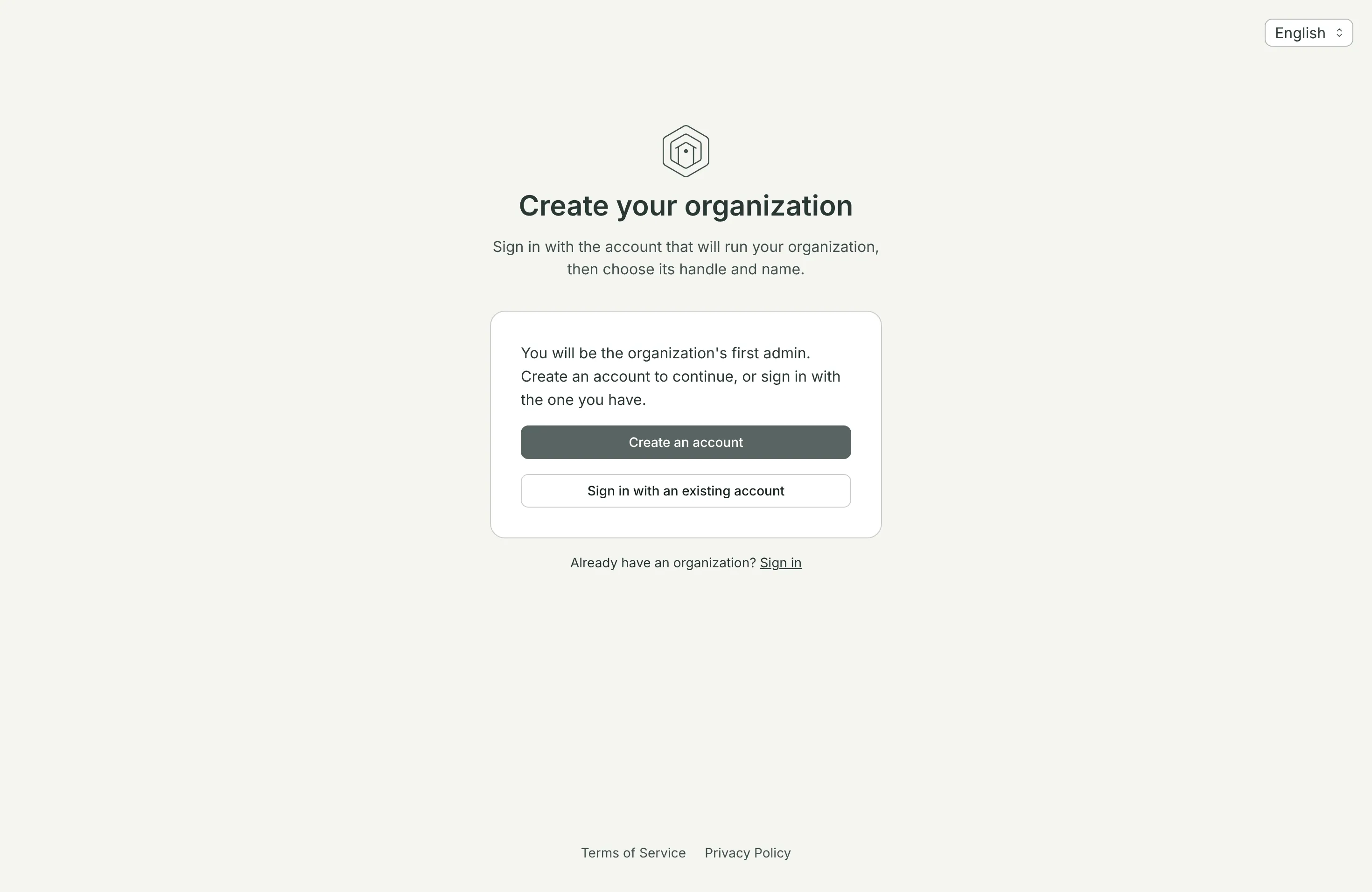
The handle is lowercase letters, digits, and hyphens, starting and ending with a letter or digit. No two organizations share one, and it cannot be changed. The name is what people see, and you can rename it from the Account page.
Creating the organization invites the address you signed up with as its first admin; signing in to the organization accepts that invitation.
Signing in
Type the organization’s handle and Continue. The console sends you to the organization’s sign-in provider and brings you back to the Account page. Organizations you signed in to lately are offered as buttons under Recent organizations.
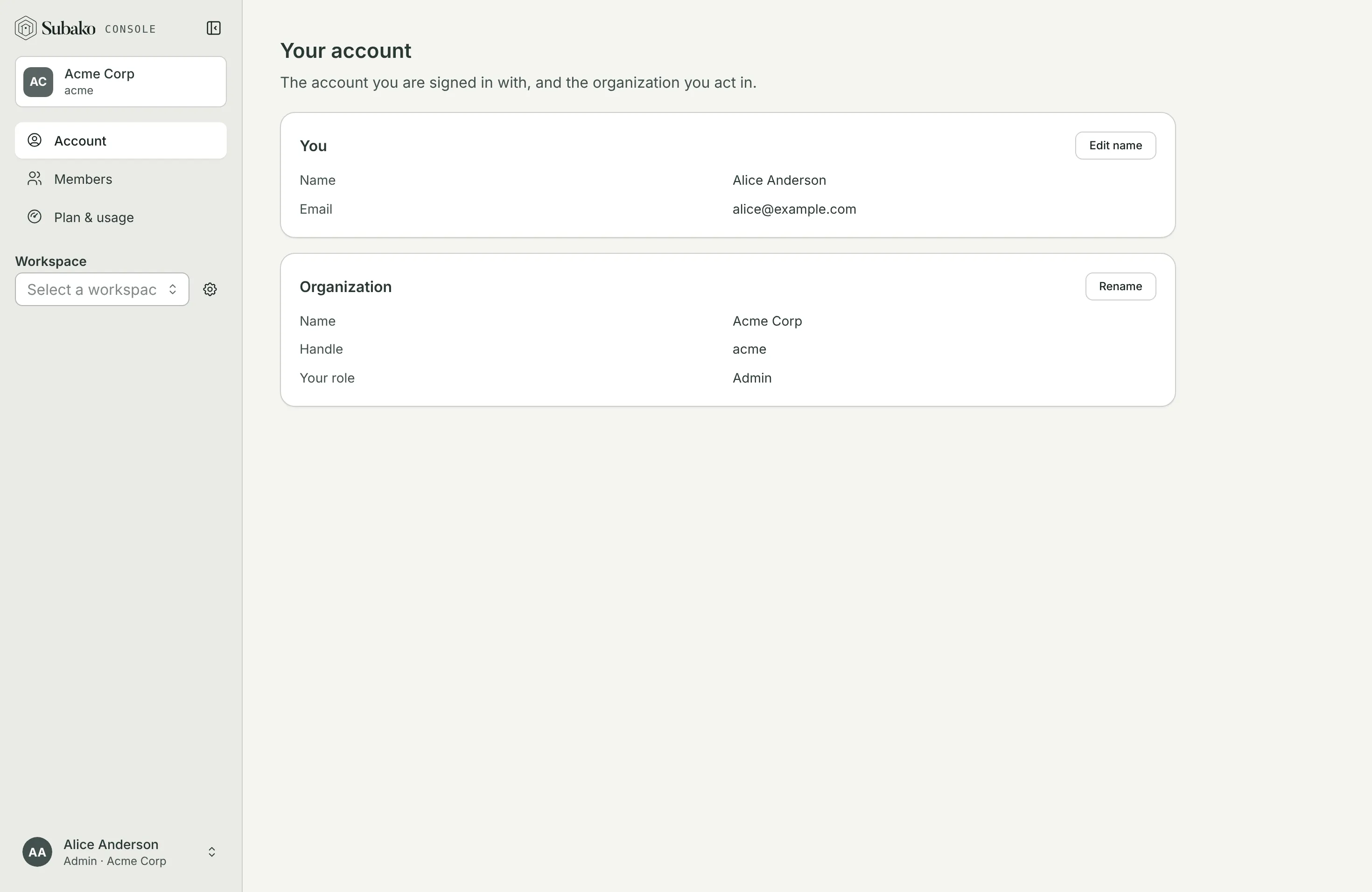
One Subako account signs in to every organization it belongs to. To work in another, open the account menu at the foot of the sidebar and choose Switch organization — see Your Subako account.
The same menu sets the console’s Language — English or 日本語 — which otherwise follows your browser.
Members and invitations
Members lists everyone in the organization and the invitations still open. Admins invite people by address, with a role:
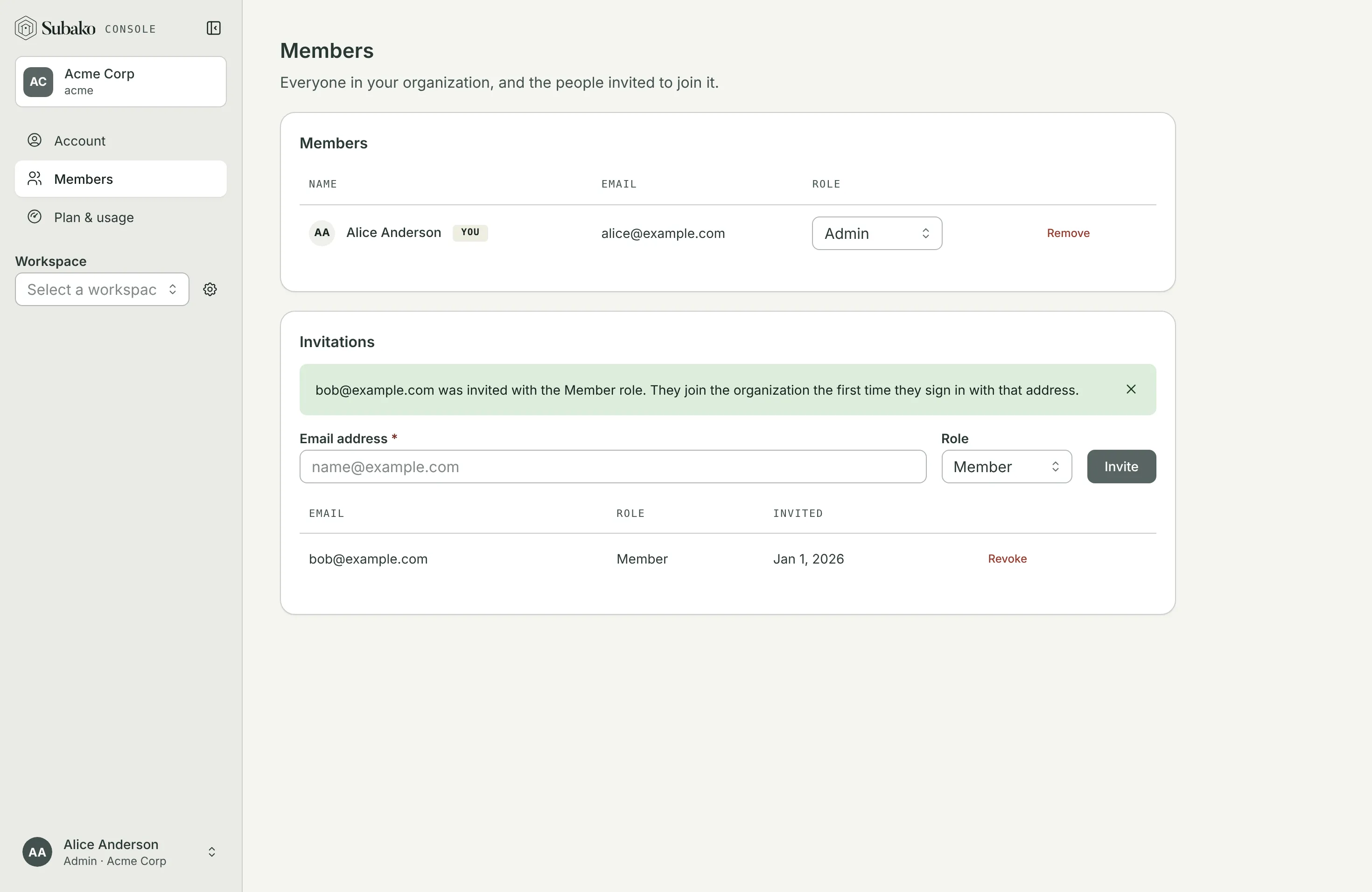
The invitation admits that address and nobody else. The person joins the first time they sign in to the organization with it — tell them the organization’s handle, and send them to Accepting an invitation below. An invitation not yet accepted can be revoked.
| Role | What it may do |
|---|---|
| Admin | Manage the organization’s members, invitations, and plan, and reach every workspace without being added to it |
| Member | Use the workspaces they are added to |
Changing someone’s role or removing them asks you to confirm. The last admin can be neither demoted nor removed. Removing a member also removes them from the organization’s workspaces; API keys they minted keep working until someone revokes them, because a key belongs to its workspace, not to the person who made it.
Accepting an invitation
This part is for the person who was invited. You need the organization’s handle — ask whoever invited you — and the email address the invitation was sent to.
Type the organization's handle
Open the console’s sign-in page at console.us.cloud.subako.ai and type the handle under Organization handle. Do not press Continue yet if you have no Subako account: a moment after you stop typing, the page offers Create an account under Invited, but no account yet?
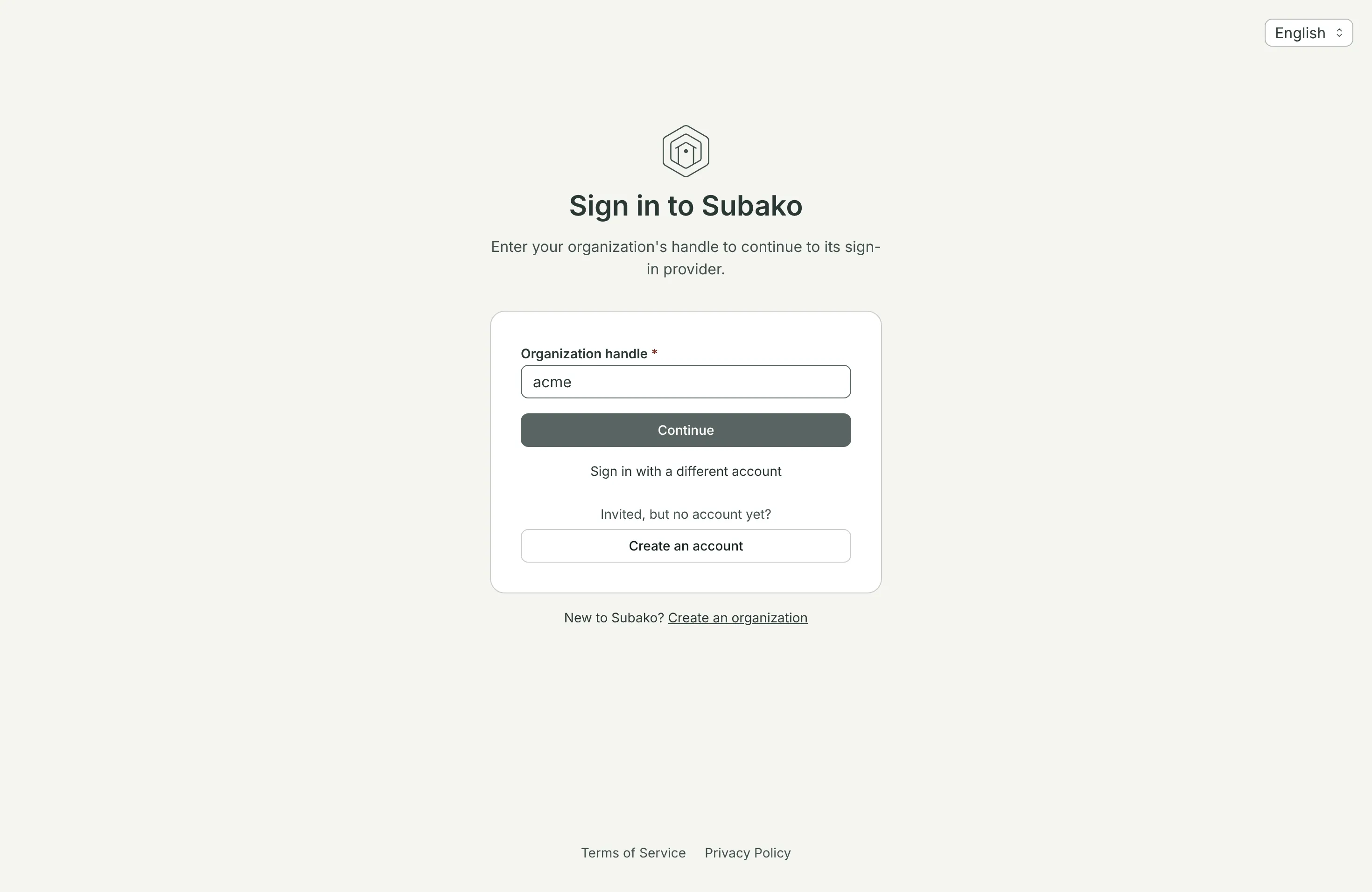
Create an account — or sign in with the one you have
- No Subako account yet: press Create an account, and create it with the email address the invitation was sent to.
- Already have one — because you are in another organization, say: do not create another. Press Continue and sign in with it. One account signs in to every organization; see Your Subako account.
You are in
Signing in accepts the invitation: you land on the organization’s Account page, with the role you were invited with.
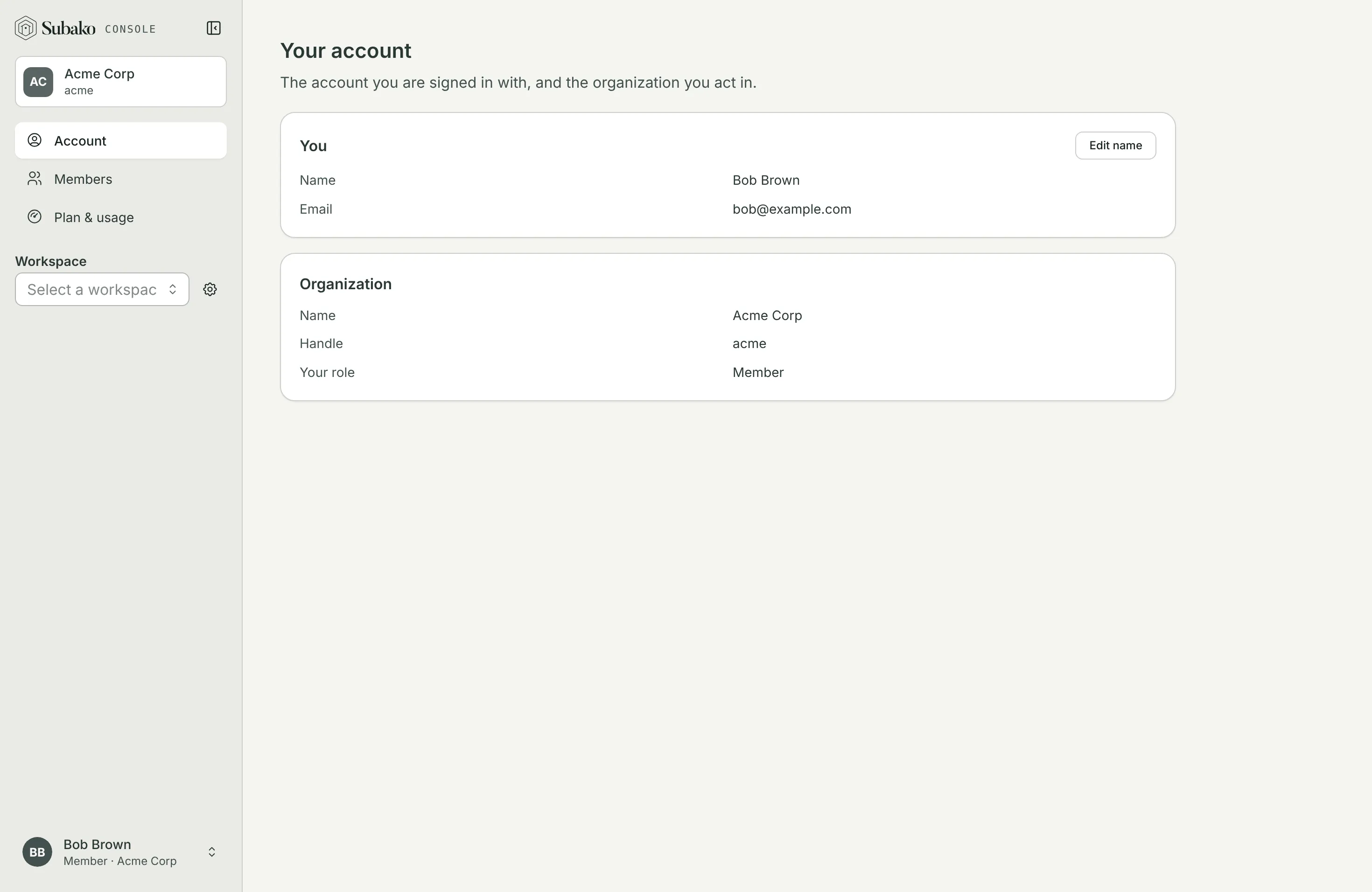
An organization admin then adds you to the workspaces you will work in, on each workspace’s Overview.
If sign-in says the account is not a member and has no invitation, the address you signed in with is not the invited one: sign in with the invited address, or ask the admin to invite the address you use.