Your Subako account
One Subako account signs in to every organization you belong to.
On Subako Cloud there are two separate things: your Subako account, which is who you are, and the organizations you work in.
| Subako account | Organization | |
|---|---|---|
| What it is | You: your email address and how you sign in | A team’s space: its members, workspaces, plan, and credit |
| How many | One per person | As many as you create or are invited to |
| Created | Once, the first time you sign up or are invited | Each time someone creates one |
Organizations are kept apart from one another: nothing in one — a workspace, an agent, a key, its credit — is visible from another. But they all sign people in through the same Subako accounts. So you need one account, however many organizations you are in: your own, your company’s, a client’s. There is no separate account to create for each.
Signing in picks the organization, not the account
Signing in starts from the organization: you type its handle on the console’s sign-in page and choose Continue. Subako then asks you to sign in with your Subako account — or, if this browser is already signed in to it, lets you straight through — and brings you into that organization.
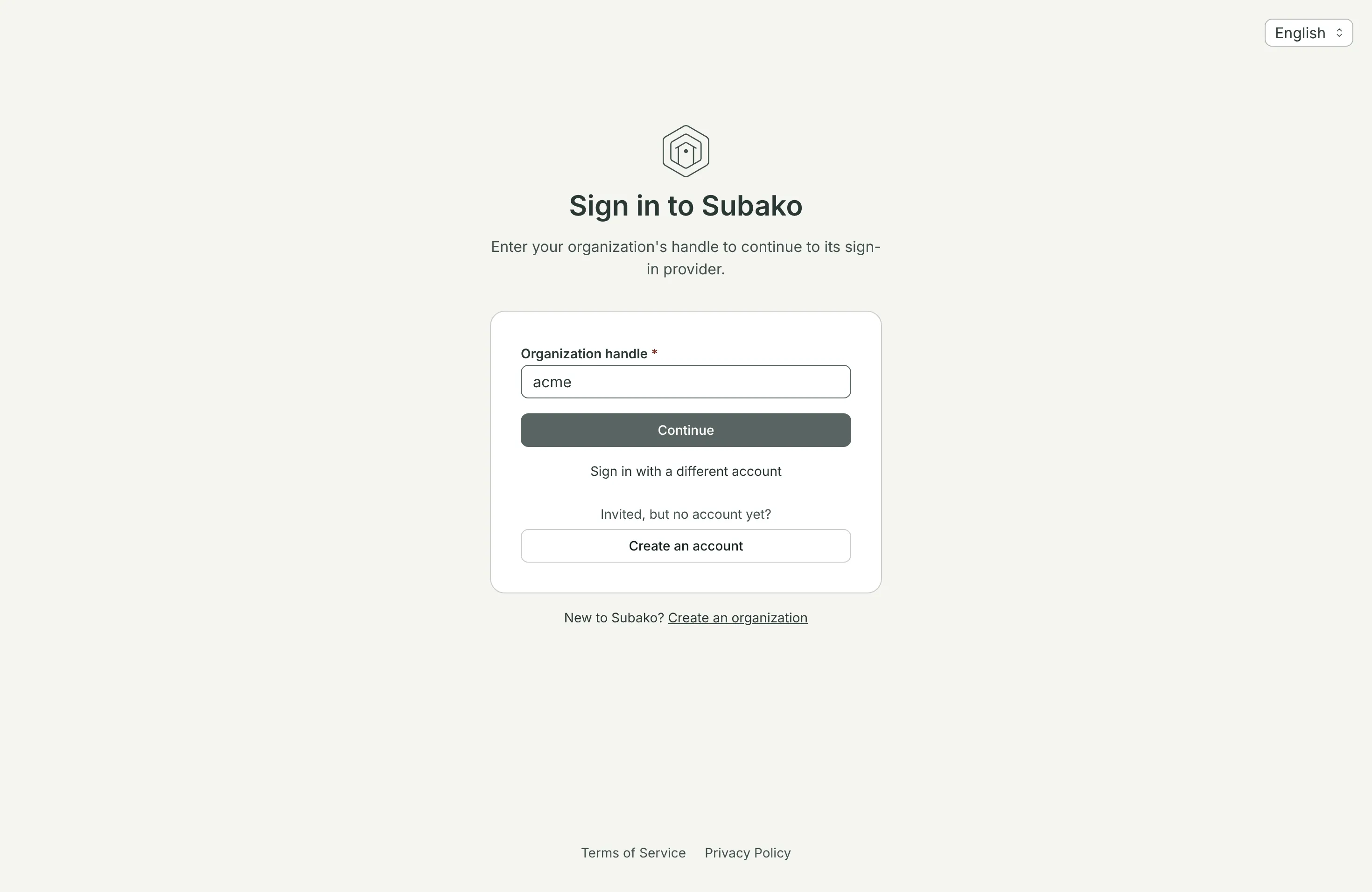
You are let in when the account is a member of the organization, or when the organization has invited the account’s email address; an invitation is accepted by signing in this way.
Your first account
You create a Subako account in one of two ways, and either way it is the only one you need:
- Signing up. Create an organization on the sign-in page asks you to Create an account — or Sign in with an existing account if you have one — before naming the organization. See Organizations and members.
- Being invited. An invitation names your email address. If you have no Subako account yet, type the organization’s handle on the sign-in page and choose Create an account under Invited, but no account yet?, with that address. If you already have one, do not create another: press Continue and sign in with it. Accepting an invitation walks through it.
More organizations, same account
- To create another organization, choose Create an organization again, and Sign in with an existing account with the account you already have. You become the new organization’s admin.
- To join another organization, ask its admin to invite the email address of your account, then sign in to its handle. The same account is now a member of both.
The 500 SC that Subako Cloud grants for trying things out comes once per account, to the first organization it creates.
Switching between organizations
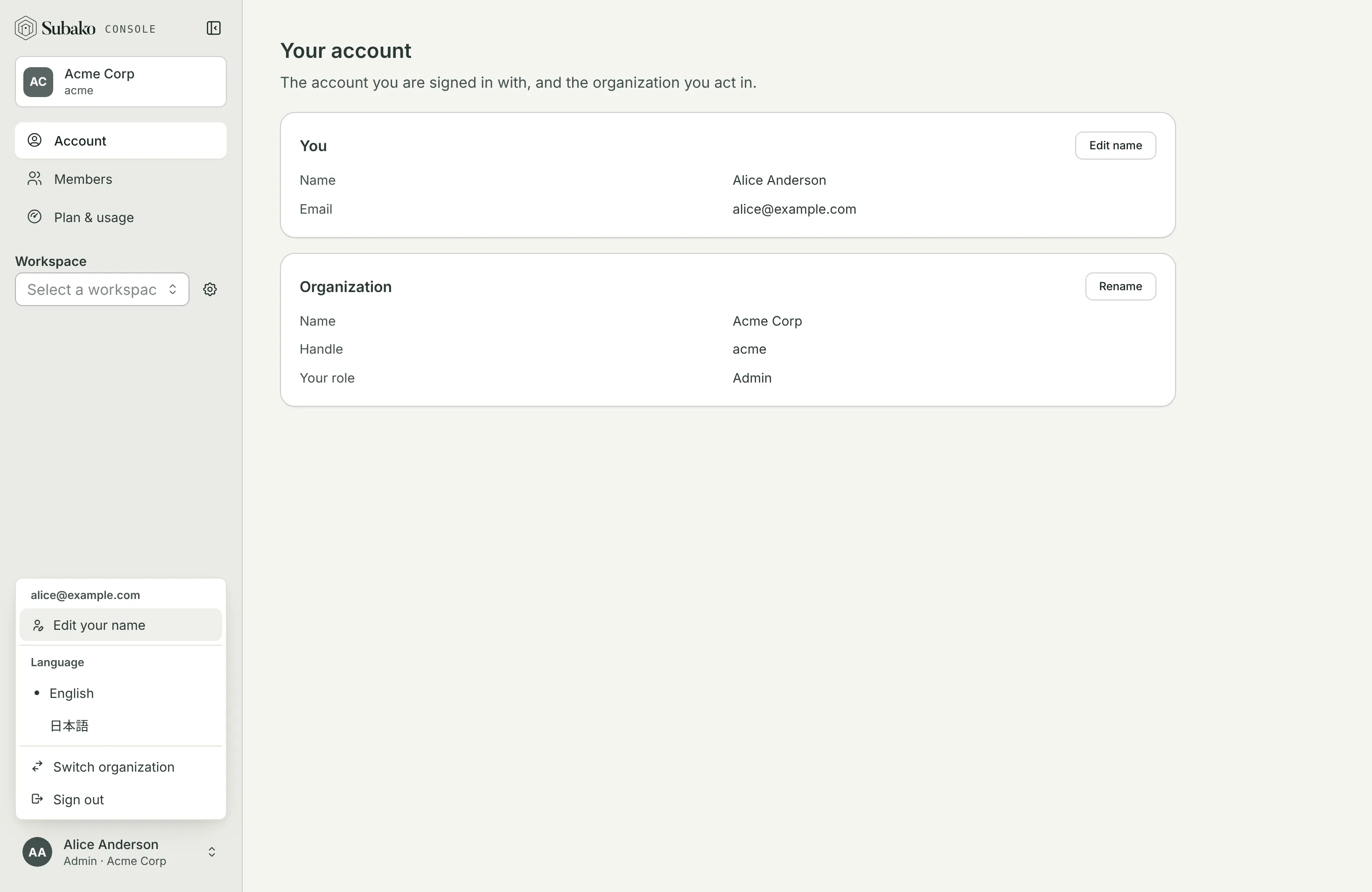
The console works in one organization at a time. To move to another, open the account menu at the foot of the sidebar and choose Switch organization.
The sign-in page shows who you are signed in as, and where. Continue to the console goes back; typing another handle under Sign in to another organization switches — with the same account, and without signing out first. Organizations this browser signed in to lately are offered under Recent organizations.
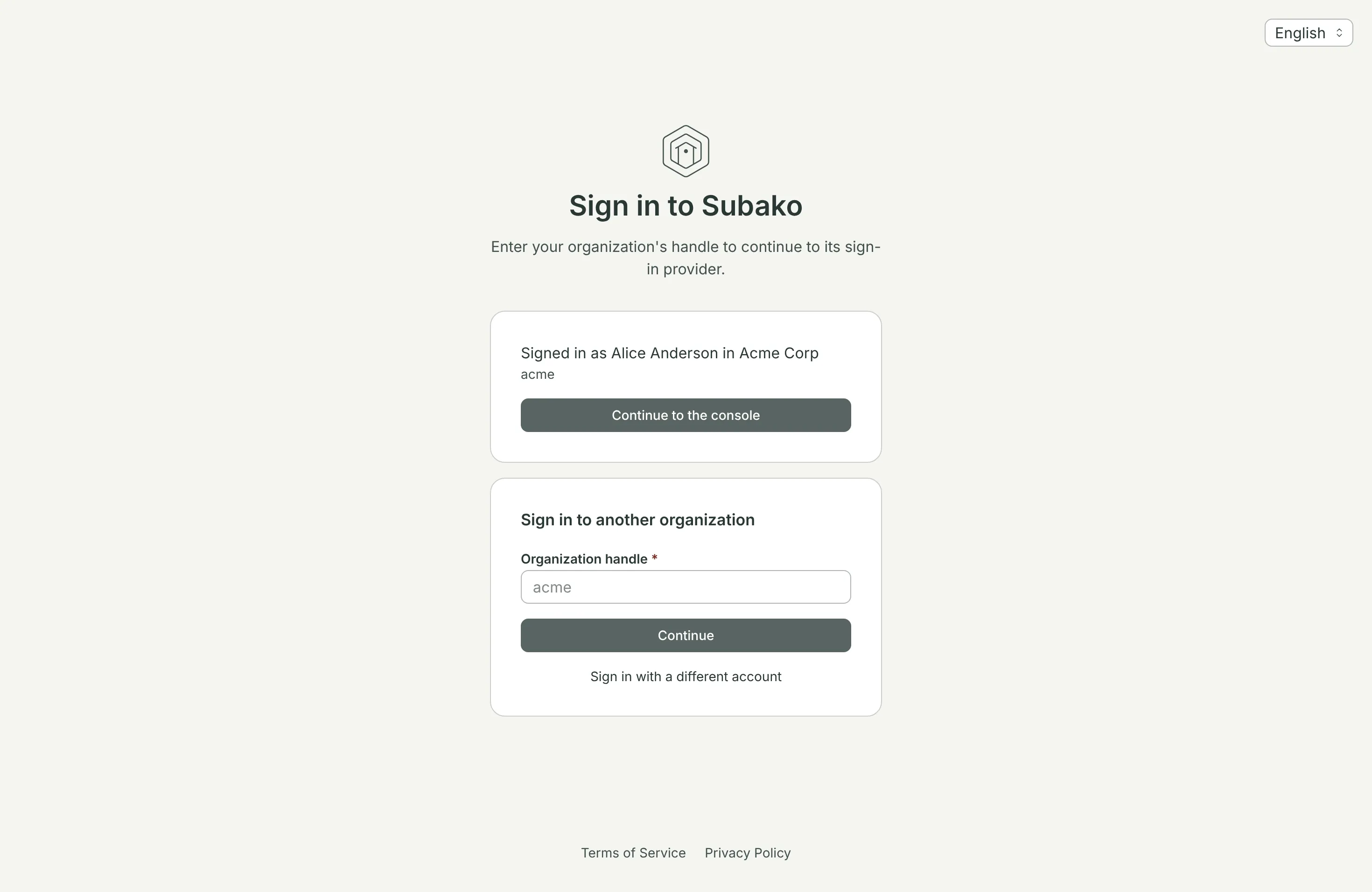
Sign in with a different account, under the form, is for the rarer case: a browser shared between people, or a second account of your own. It asks for credentials instead of reusing the account the browser remembers.
In the CLI
The CLI signs in the same way, with the same account: subako login --org <handle> once per organization. Each login is stored as a profile, and subako profile use <name> switches between them. See the CLI.